
The following article includes:
How to add a new portfolio:
Step 1.
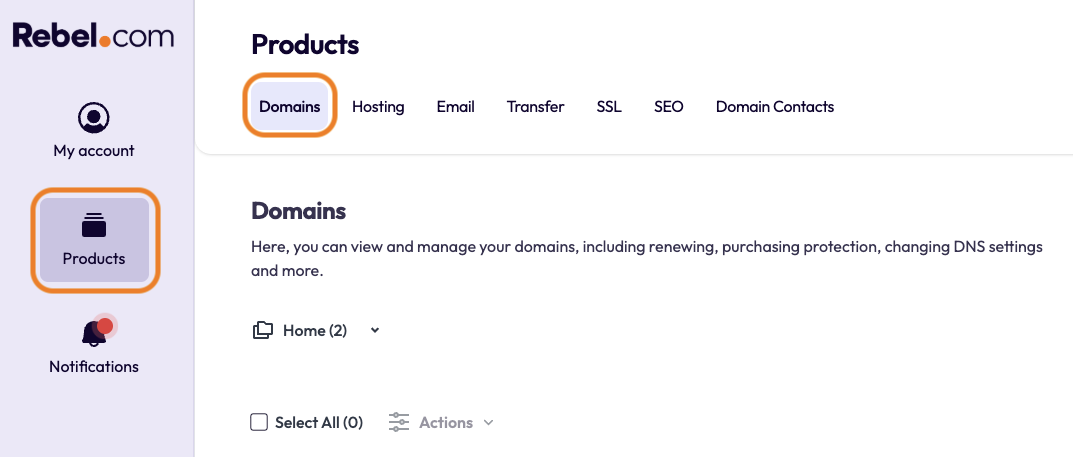
Log in to your Rebel account, then select "Products" in the top-left corner. In the top toolbar, you will see "Domains”. Please select this.
Step 2.
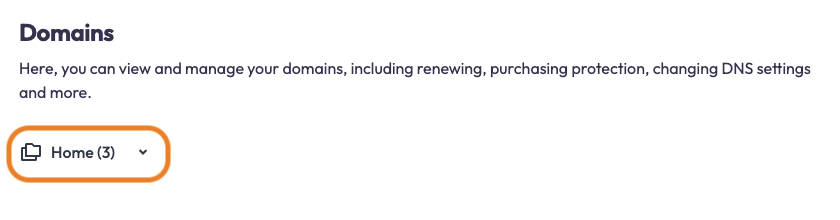
On the left-hand side, you'll see a section called an area that shows "Home"; select this for a drop-down menu.
Step 3.
You will be guided to fill out the name of your portfolio, and once filled, you will be able to select "Save Changes"
You will then be able to see your portfolio by clicking "Home."
How to remove a portfolio:
Step 1.
Log in to your Rebel account, then select "Products" in the top-left corner. In the top toolbar, you will see "Domains”. Please select this.
Step 2.
On the left-hand side, you'll see a section called an area that shows "Home"; select this for a drop-down menu.
Step 3.
In the drop-down menu, you will see all of your portfolios. Select the one that you want to remove.
Step 4.
Once selected, still in the drop-down menu, click "Delete Portfolio".
Step 5.
A confirmation pop-up will appear to verify you want to delete the portfolio. You can confirm this by selecting "Delete".
Note: You can not remove your home default folder
Comments
0 comments
Please sign in to leave a comment.